User manual for the ROC web application
Introduction
This ROC-E / ROC-M application manual describes all functions and how they work.
It covers use of the application on a ROC-E robot and on a ROC-M manager.
Home page
On a ROC-E robot
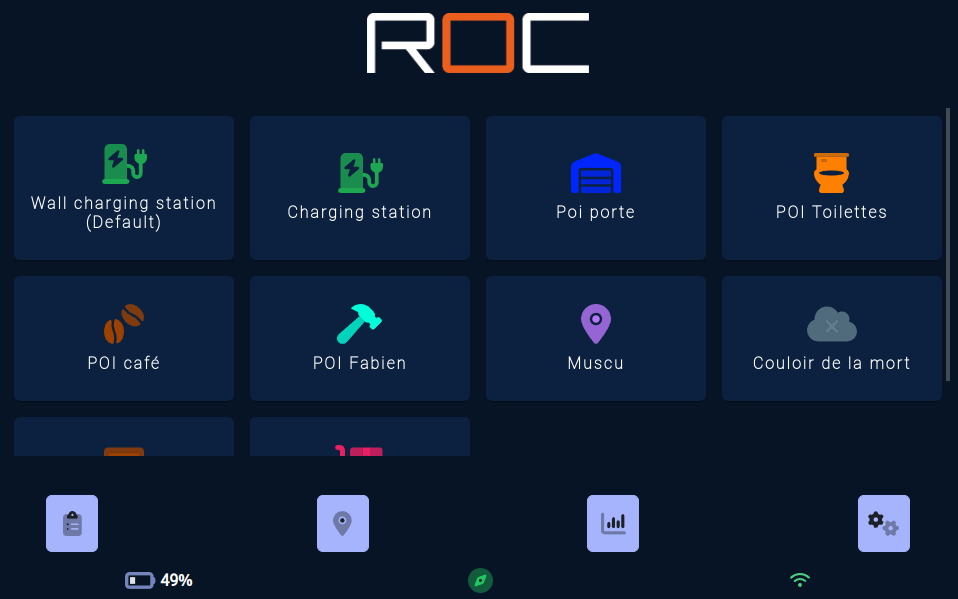
The home page displays the list of destinations stored in the robot's map in the form of a large button.
Pressing one of these buttons sends a command to the robot to move to the associated destination.
The button at bottom right gives access to the application configuration.
On a manager
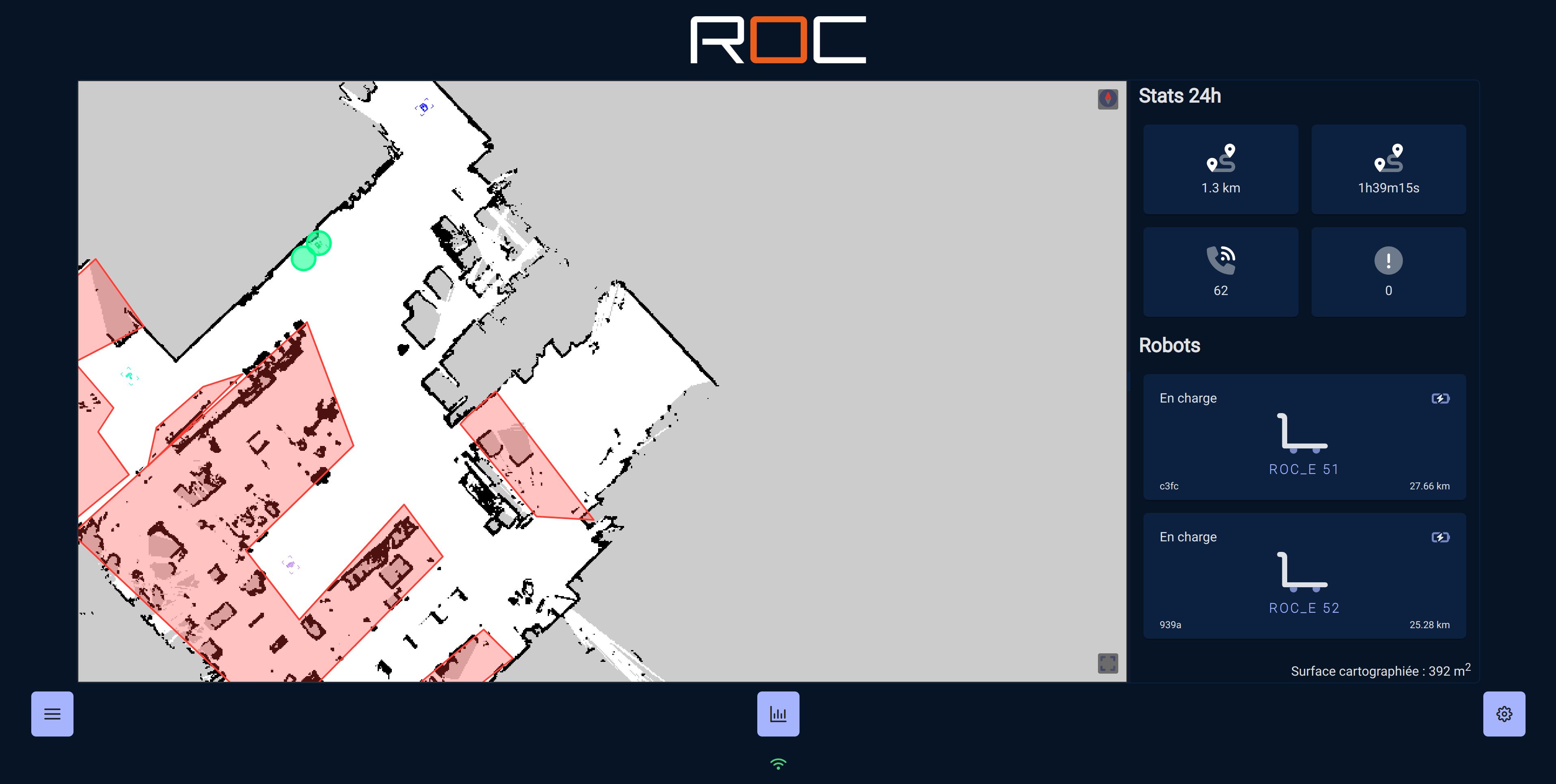
3 buttons at the bottom of the screen give access to different sections:
The button on the left gives access to the list of current missions.
The button on the right gives access to the application configuration.
The central button gives access to usage statistics.
Configuration
The configuration page allows you to configure the tool.
Depending on your configuration (e.g. manager or not), some options may not be available.
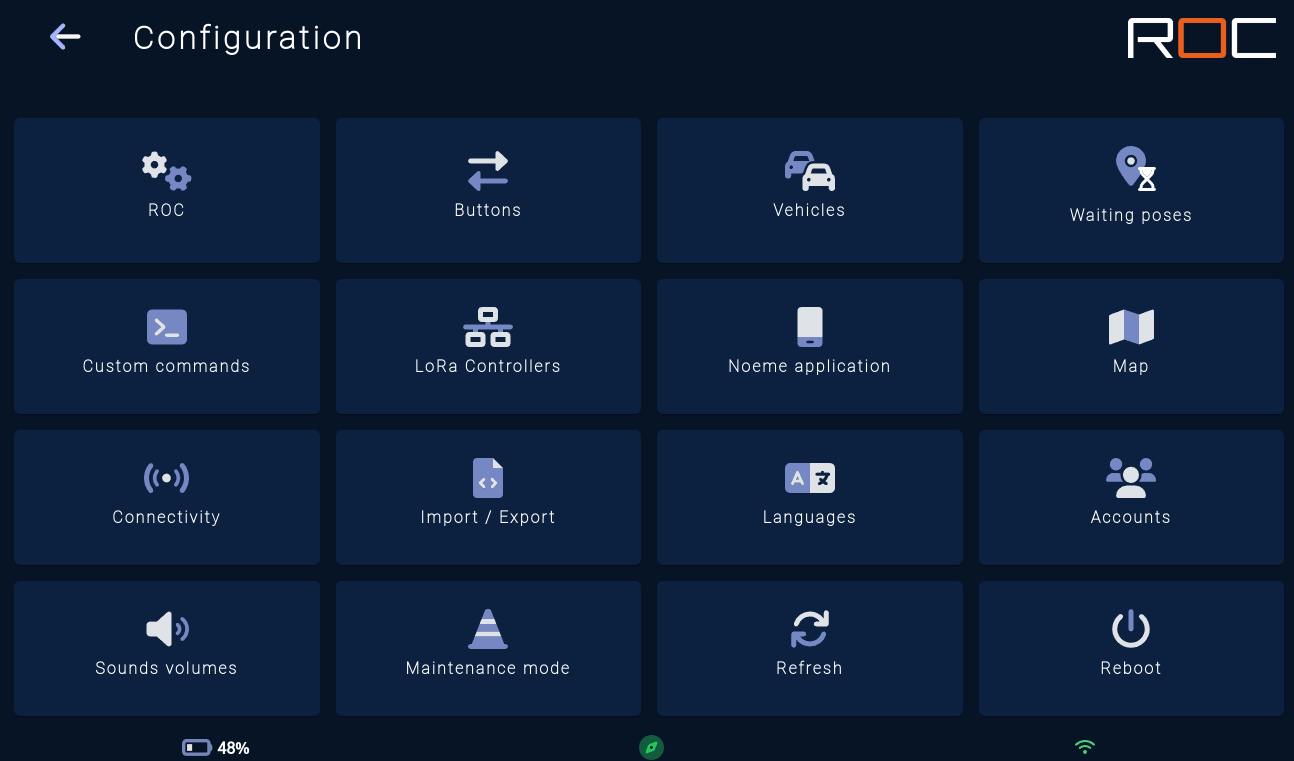
This page takes you to the following sections:
ROC: for general module configuration.Buttons: add / modify / delete call buttons.Vehicles: manage the list of fleet vehicles.Waiting poses: add / modify / delete waiting points.Custom commands: add / modify / delete custom commands.LoRa Controllers: add / modify / delete LoRa controllers.Noeme application: access the Noeme application.Map: manage destinations.Connectivity: manage the different WiFi connections of ROC and Noeme.Import / Export: export / import configurations.Languages: select the interface language.Accounts: add / modify / delete a user account.Sounds volumes: configure different sound volumes.Maintenance mode: activate or deactivate maintenance mode (manager only).Refresh: update the page (perhaps useful when updating the application).Reboot: restart the ROC application.
ROC
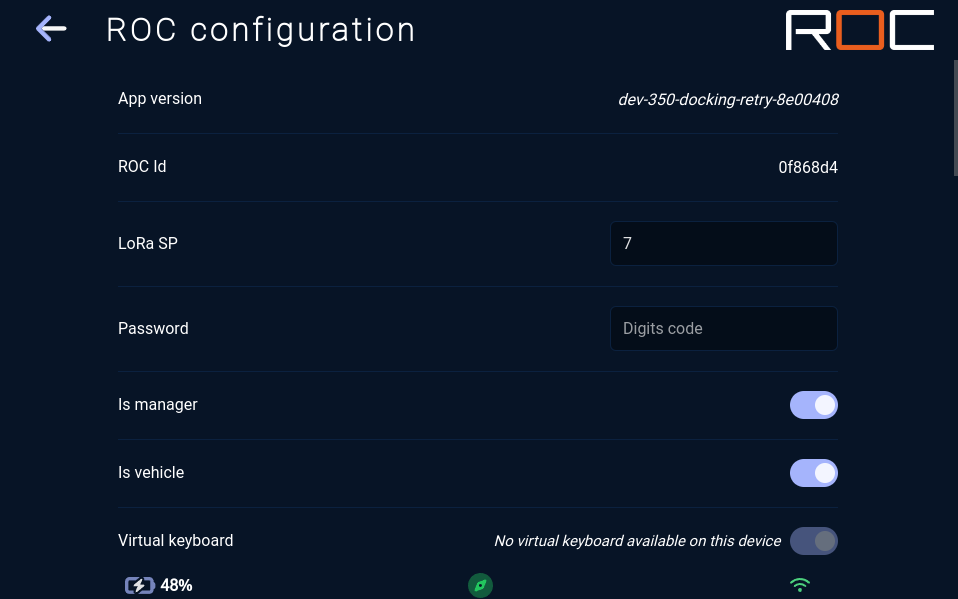
This configuration page lets you access certain information (application version, ROC Id...) and configure various application parameters.
App version: installed application version.ROC Id: unique module identifier.LoRa SP: configuration of LoRa communication spread factor; must be the same as call buttons, manager and other robots. Possible values from 7 to 12.
The higher the value, the slower the communication but the longer the range.Password: password to access the configuration section.Is manager: indicate whether the active equipment is the manager or not.Is vehicle: indicate whether the active equipment is connected to a Noeme vehicle.Virtual keyboard: Whether or not to use the virtual keyboard.Allow move from dock: allow a user to start a new mission when the robot is waiting at its charging station.Response deadline: waiting times for call button responses.Vehicle Id: unique vehicle identifier.Direction: indicate the vehicle's direction of arrival.ROC Module: type of active ROC module.Id module: module identifier for communication. Must be unique and reported on the manager.Delay auto release: automatic release delay on arrival at first stage (robot without load).Delay auto release in multidestination: automatic release delay on arrival at other stages (robot potentially loaded).Delay wait tablet plugged: for versions with removable tablet, wait time before the robot leaves if the tablet is not connected.Delay alert tablet need to be plugged: for versions with removable tablet, waiting time between 2 alerts when the tablet is not connected.Delay between sound on wait release: delay between 2 tones to indicate waiting for release.Delay between retry on move failed: waiting time between 2 attempts if the move fails.Nb retry on move failed on first step: number of move attempts if move fails at first stage.Nb retry on move failed on other step: number of move attempts if move fails at other stages.Nb retry on move failed on multidest: number of retry attempts in the event of a failed multidestination trip.Veh to destination, distance goal tolerance: distance in cm around the destination where the robot is considered to have arrived.Veh to destination, yaw goal tolerance: angle in degrees with respect to the destination where the robot is considered to have arrived.Delay before retry on waiting pose: waiting time before retry when the robot is in a waiting position.
Buttons
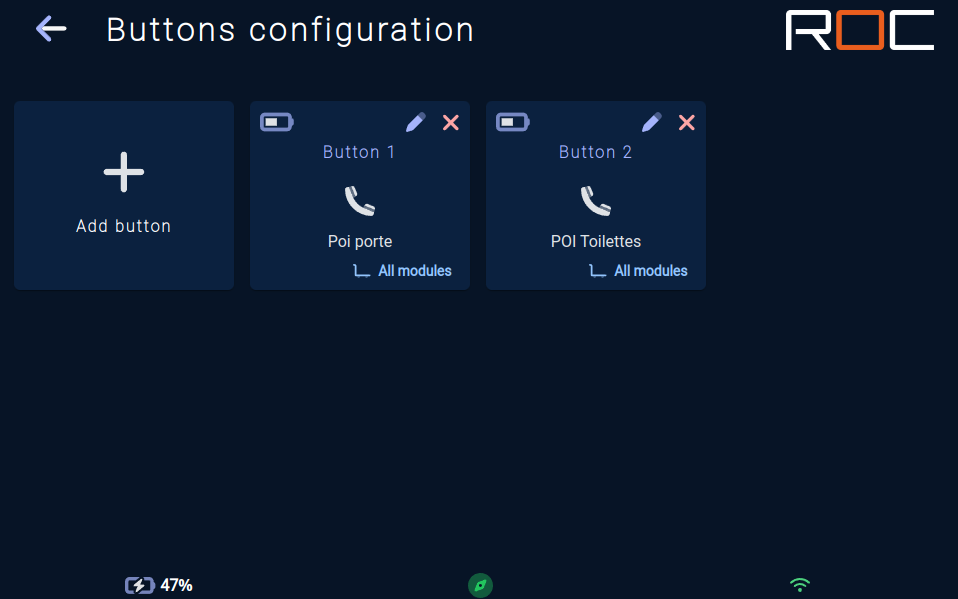
This page lists the configured buttons.
To add a new button, click on the "Add button" button.
To modify a new button, click on the pencil associated with the button.
To delete a button, click on the red cross associated with it.
Add a button
To add a new button configuration, click on the "Add button" button.
If the application is configured as manager and vehicle, an automatic mode will be proposed; otherwise, the manual mode will be displayed.
Follow the steps to create a new button.
Button type
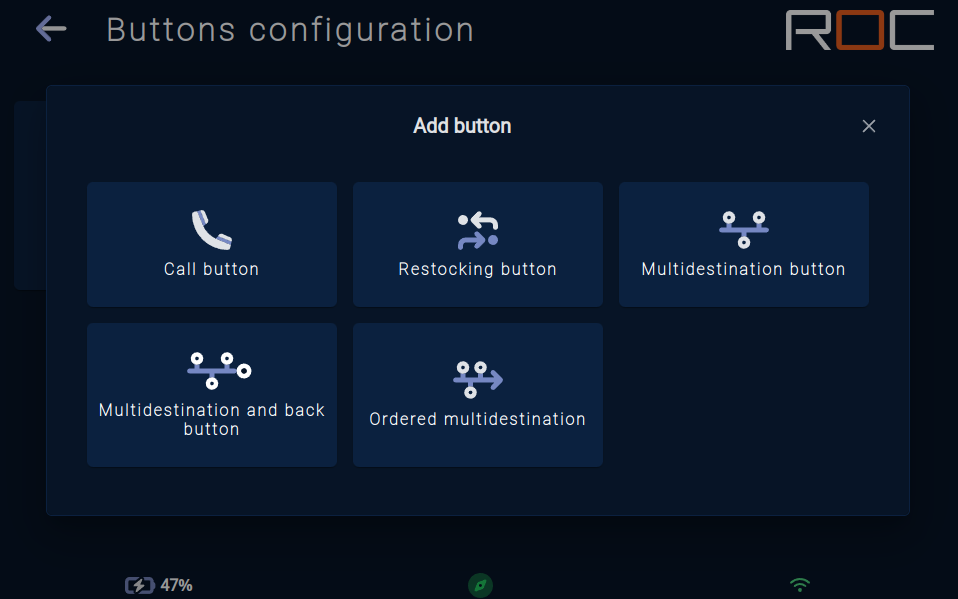
The application currently supports 5 button types:
Call button: Once there, the user can choose the next step or release the robot..Restocking button: When the associated button is pressed, the robot will move to the first associated destination.Once there, the user can only release the robot, and it will move to the second associated destination.This type of configuration may be useful in the case of workstation replenishment, where the call is launched from the workstation, and the robot moves first to the warehouse where it will be loaded, and then to the user's workstation.Multidestination button: When the associated button is pressed, the robot will move to all associated destinations, from nearer to nearer.Multidestination and back button: When the associated button is pressed, the robot will move to all the associated destinations, from nearest to nearest, ending at a specific, configured last position.Ordered multidestination: When the associated button is pressed, the robot will move to all associated destinations in the defined order.
Constraints
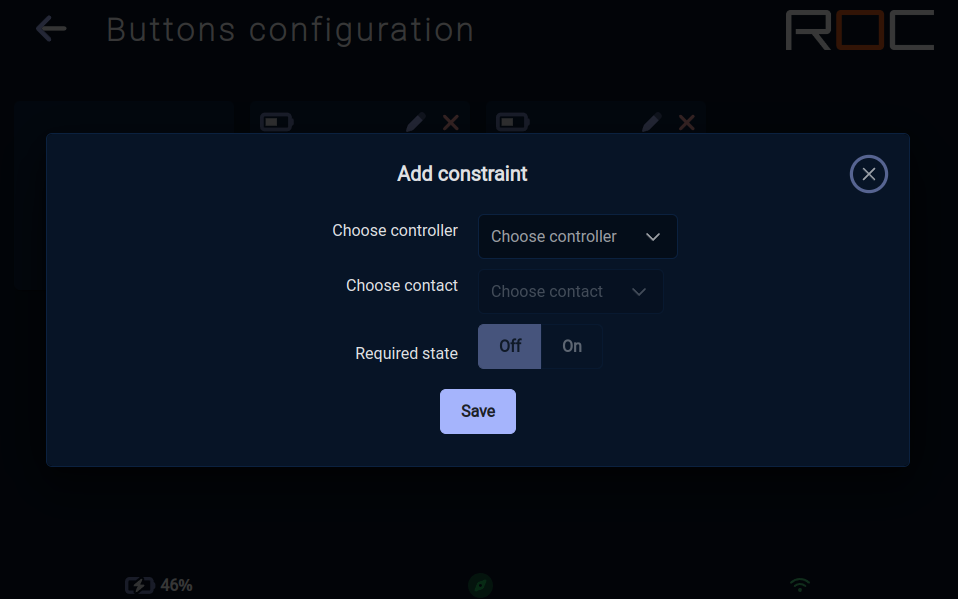
For each step, you can set constraints by clicking on the padlock associated with the step.
These constraints are linked to the LoRa controllers connected to the solution (see section on LoRa controllers);
To define a constraint, you must indicate:
the LoRa controller where the sensor that will define the constraint is connected
the LoRa controller contact
the state of the contact expected to validate the step
Module type
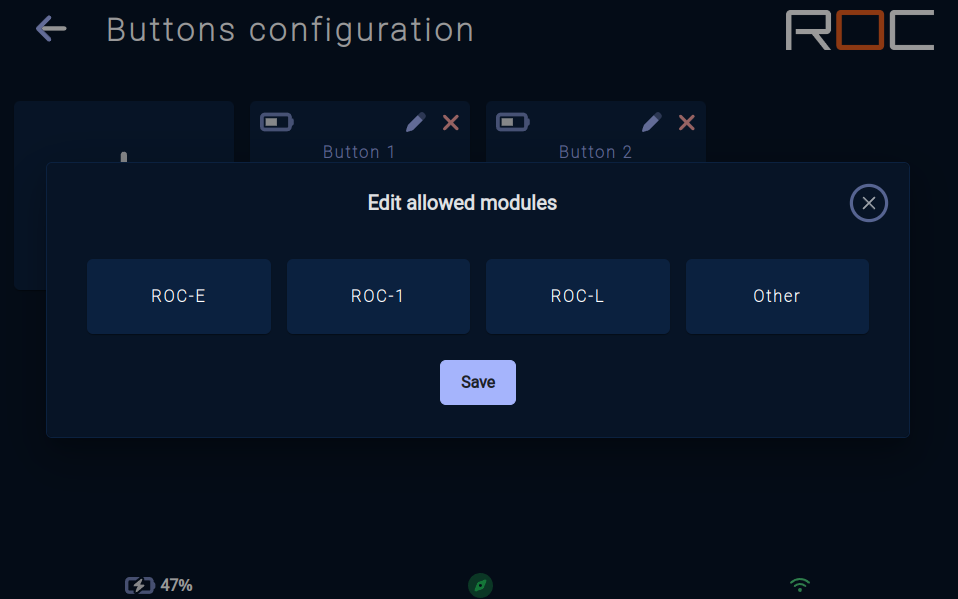
Once a button has been created, you can restrict the calling of these buttons to certain types of ROC module; to do this, click on the "All modules" link at the button level, then select the module(s) authorized to respond to a call from this button.
Vehicles
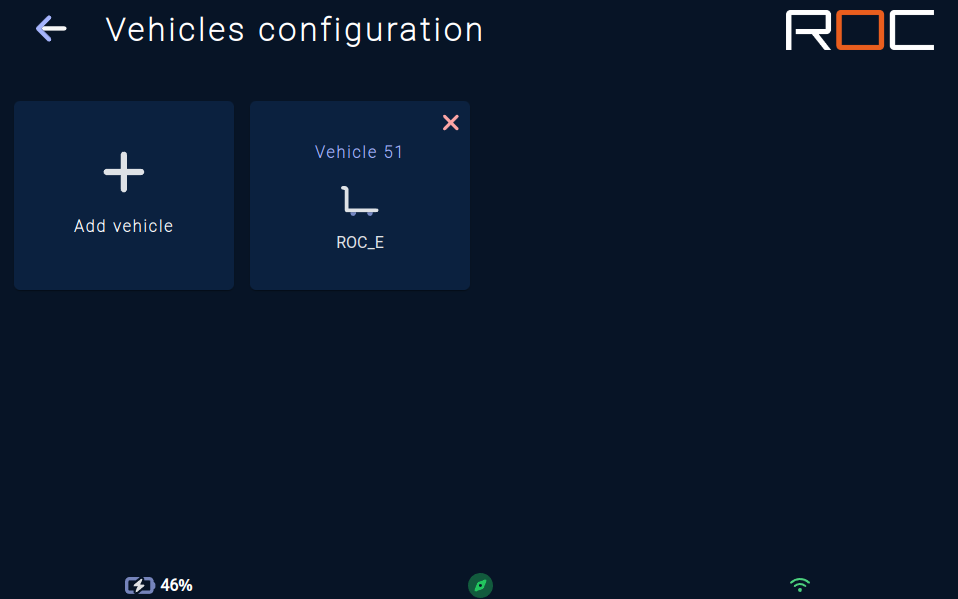
This page lists configured vehicles.
To delete a vehicle, click on the red cross associated with the vehicle.
To add a new vehicle, click on the "Add a vehicle" button and complete the required information.
Waiting points
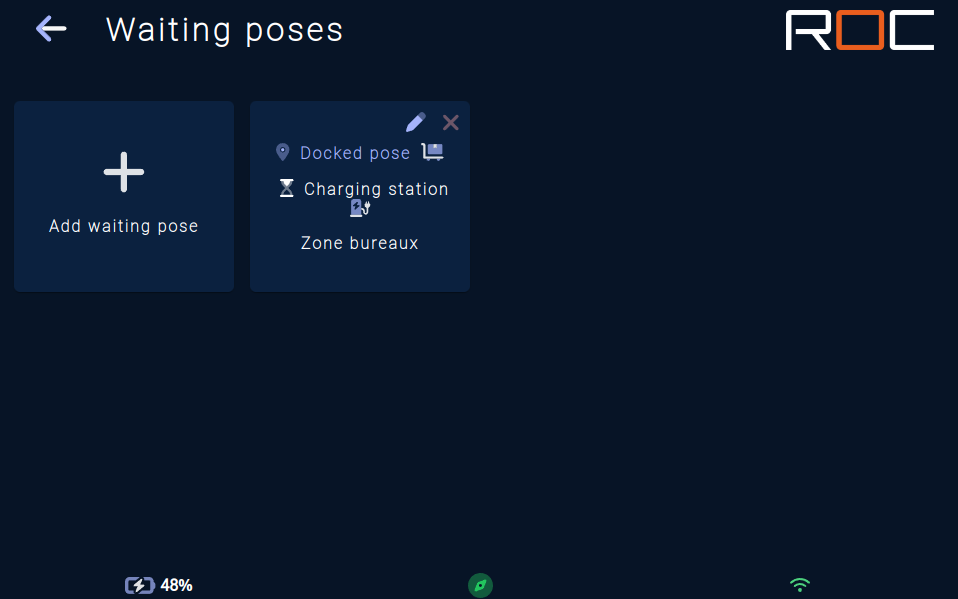
In some cases, several robots will need to go to the same saved position at the same time.
To prevent robots from self-blocking, it is possible to set up waiting points so that one of the robots waits on the position until the other robot has left the saved position.
Prerequisites
To add a new waiting point, you must first create:
The saved positionwhere there may be a conflict.The saved position corresponds to the
waiting point.A configurable zonemust contain the saved position where there may be a conflict.The robot will send a message to the other robots to indicate that the space is free when it leaves this zone.
Custom commands
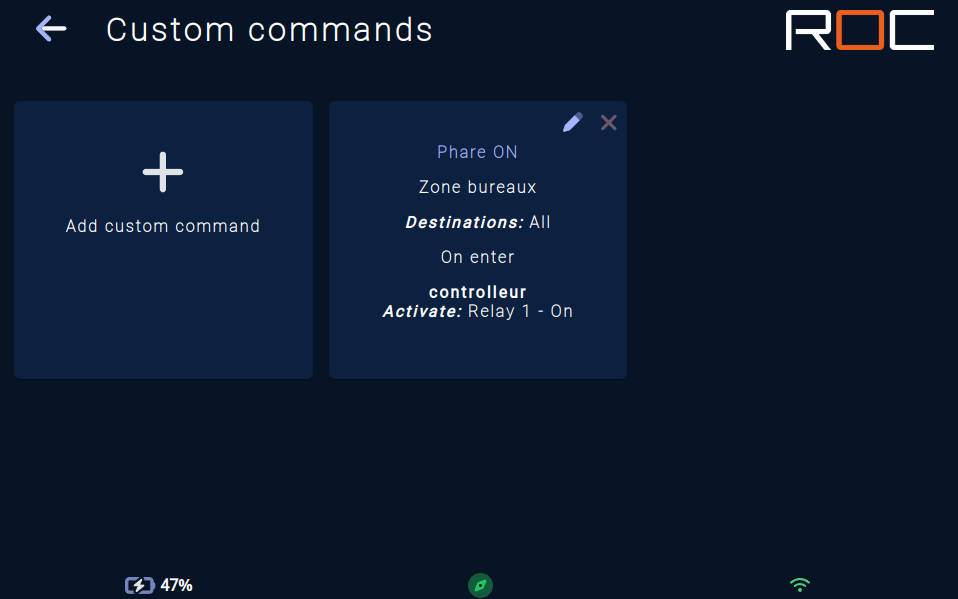
Custom commands can be created to instruct a LoRa controller to activate one of its relays at a particular time, or to pause robot movement depending on the state of a LoRa controller contact.
To add a custom order, you must indicate:
a
titlethe
trigger zone(create a customizable zone on the map as a first step)the
list of saved positionsfor which the order is to be sent (select nothing to apply to all destinations, activate “All except” to select only those positions where the behavior should not be triggered)the
triggering moment(on entering the zone, on leaving the zone, on a movement error, as long as the robot is in the zone)the
LoRa controller relayto activate or the contact to wait for
Examples of use: open an automatic door, switch off a zone alarm system, wait for a door to open before continuing...
LoRa controllers
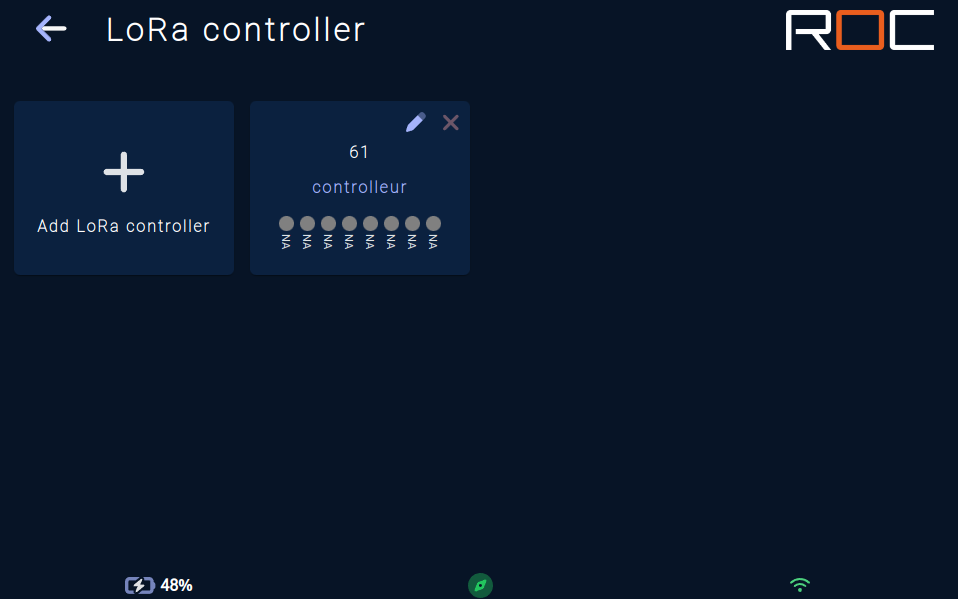
This section lets you add, modify and delete LoRa controllers for use in other configurations.
When a controller contact is active, the dot will be green.
Noeme application
This menu gives you direct access to the vehicle's application.
Please refer to the Noeme application documentation for further details.
Map
This section allows you to:
add, move and delete saved positions.
modify names, icons and colors of saved positions, charging stations and docked positions.
restrict access to positions to certain module types.
manage groups.
Groups
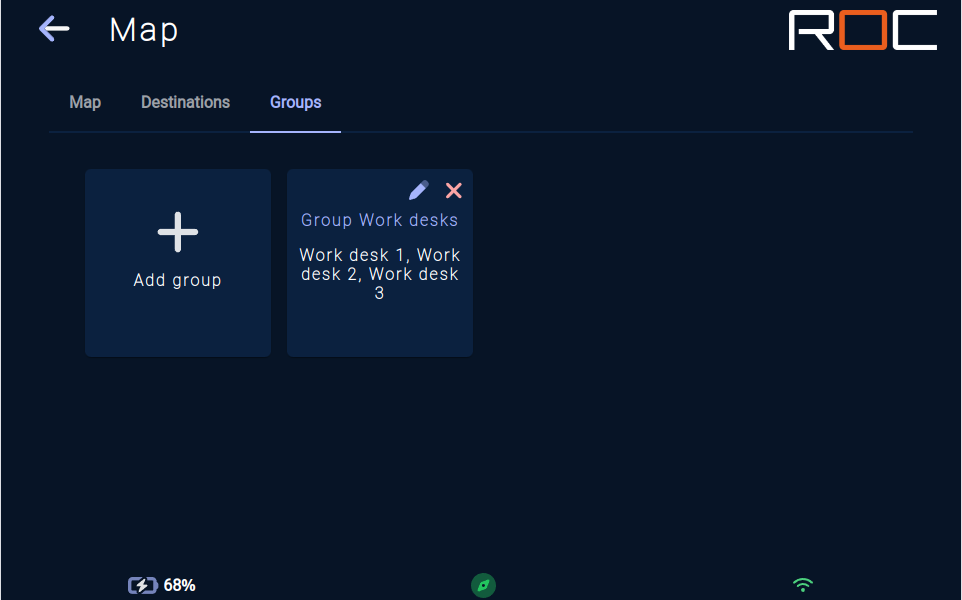
Groups allow several positions to be grouped together with a main position. For example, a user can send a robot to the main position, and once the robot has reached the main position, the screen will allow the user to choose a more precise destination position (one of the positions configured in the group).
To create a group, you must specify :
a main position
a list of the group's other positions.
Connectivity
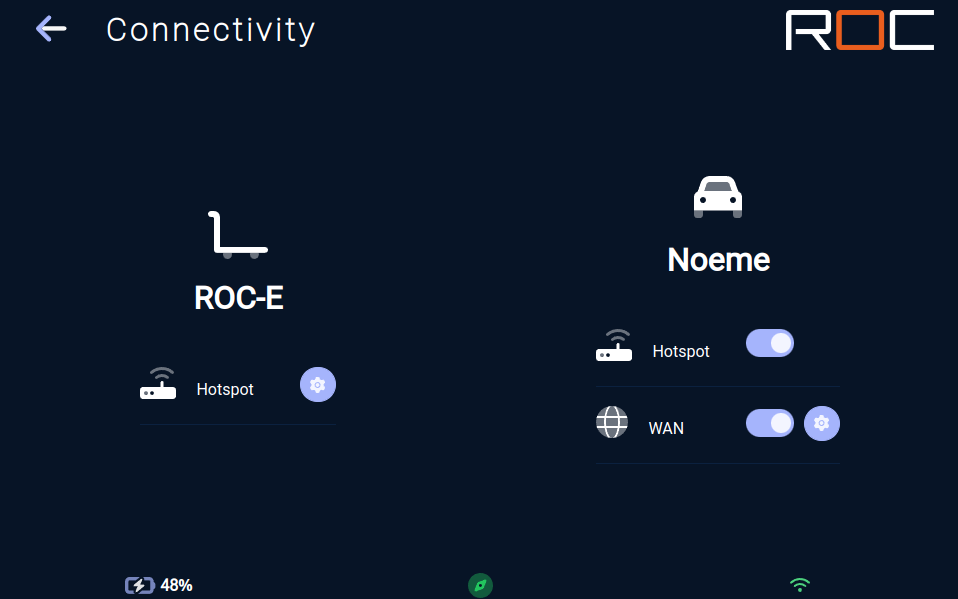
This page lets you activate, deactivate and configure the various WiFi functions for the module and Noeme.
Import / Export
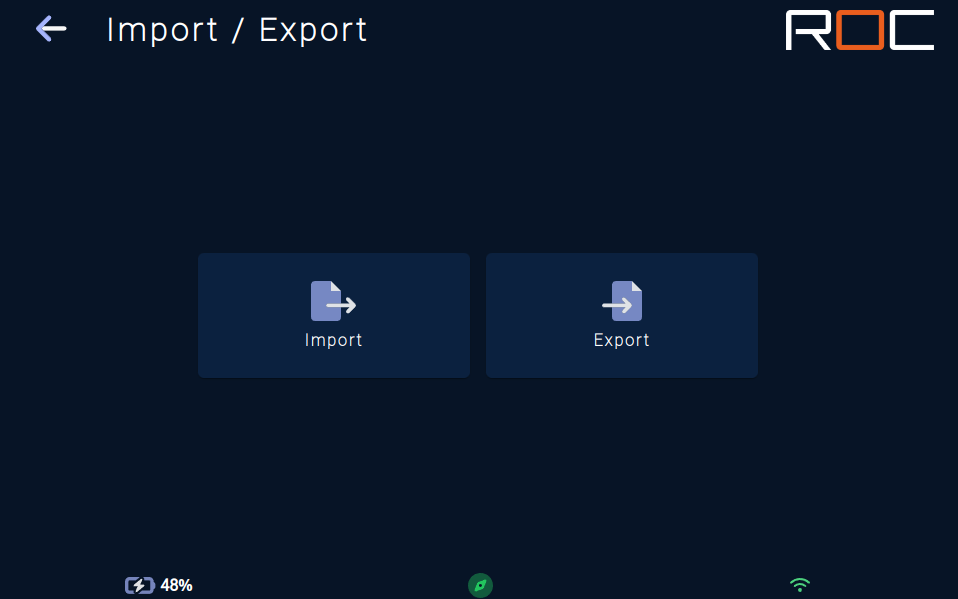
This page lets you import/export configurations.
Export: click on the "Export" button to download configurations (to save them or to import them on another robot or manager).
Import: click on the "Import" button, then select the file to be imported.
Languages
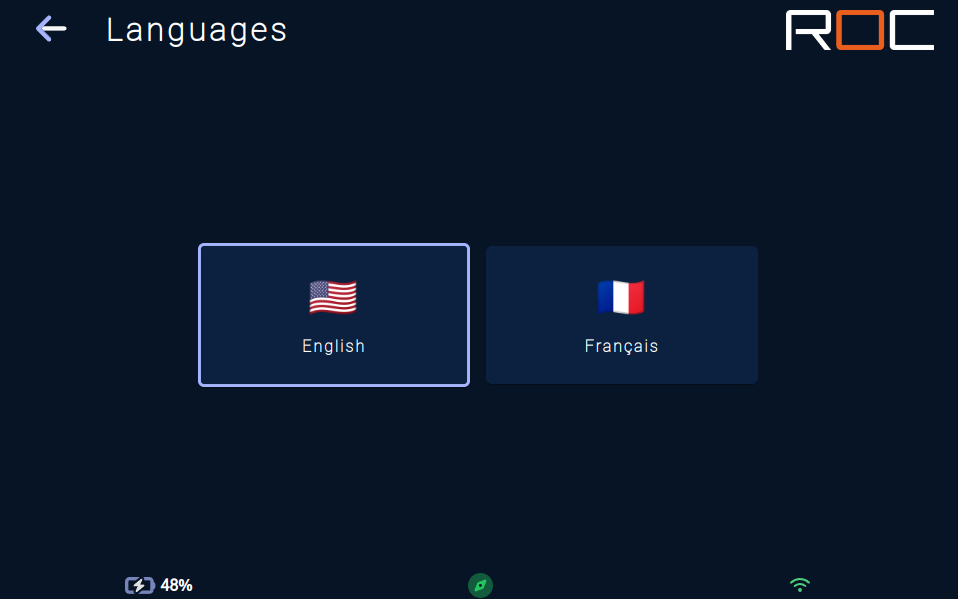
This page lets you choose the application language.
User accounts
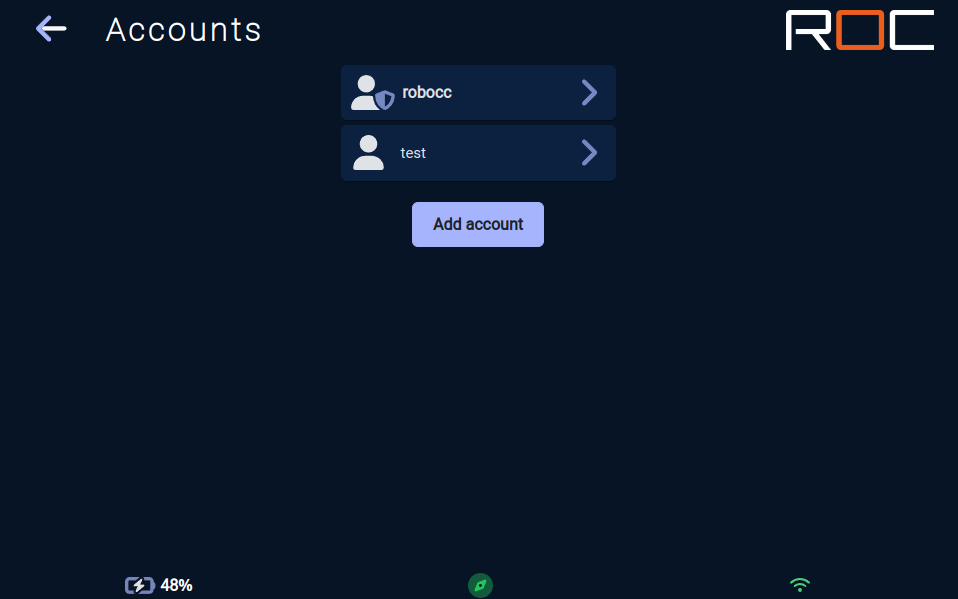
This page allows you to add, modify or delete a user account.
Sound volumes
This page lets you set a maximum volume for each scenario of sounds emitted by the vehicle.
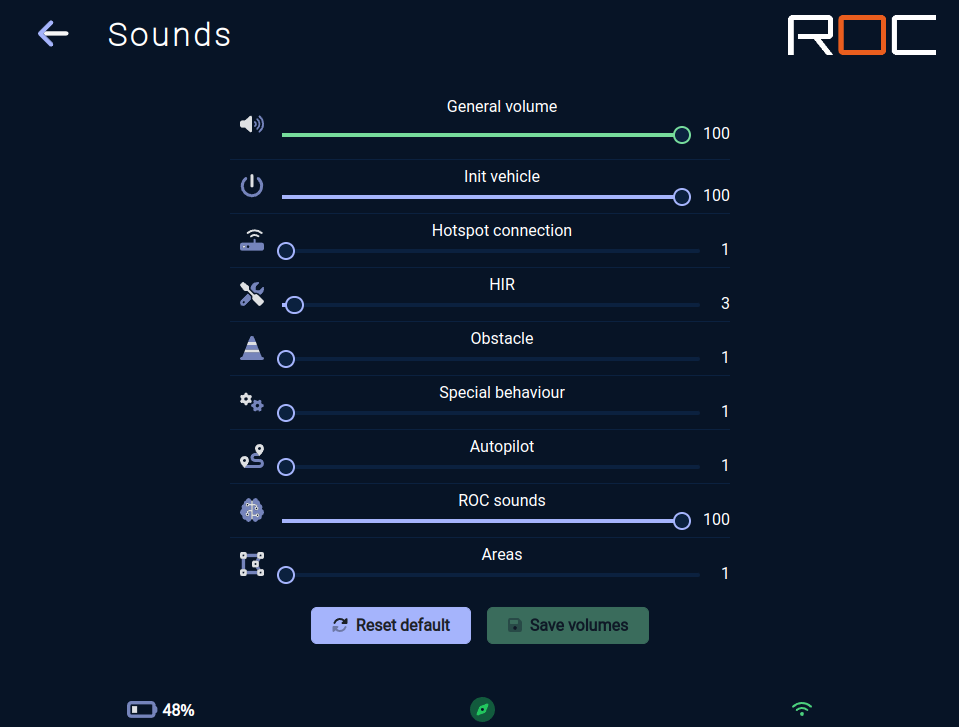
The general volume acts as an upper limit for all other values.
*If set to 30, other volumes cannot exceed 30.
The following scenarios can be configured:
Initialization: Sounds when the vehicle is started.Hotspot connection: Sounds emitted when a device is connected to the vehicle's WiFi hotspot.IHR: Sounds emitted when the vehicle is expecting human intervention (Intervention Humaine Requise).Obstacle: Sounds emitted when the vehicle detects an obstacle while traveling.Special behaviors: Sounds emitted when the vehicle is in a particular state.Autopilot: Sounds emitted during the steps of sounds in a sequence of the vehicle's autopilot mode.ROC sounds: Sounds emitted during missions.Settable areas: Sounds emitted when the vehicle enters, exits or is in a settable area in which sound behaviors have been configured.
Maintenance mode
Click this button to activate or deactivate maintenance mode.
This button is only visible on a manager, and is used to pause the system.
If maintenance mode is enabled, the button icon will be orange.
Refresh
Click this button to force a complete page refresh.
This action may be useful after an application update.
Restart
Click on this button to completely restart the application and return it to its start-up state.
Statistics
The statistics page gives you access to a set of graphs and heatmaps showing how the solution is working.
The Export button lets you export the application's raw data to generate your own usage statistics.
Home
Provides an overview of solution usage.
A filter system lets you select the date and period of data analyzed.
Calls
Allows you to view a set of graphs on calls made to the solution.
Destinations
Provides statistics on the most popular destinations, as well as a heatmap.
Delays
Allows you to consult statistics on intervention times on the solution:
Travel time
Assistance in the event of a problem
Release time
Movement error
View statistics on displacement errors and a heatmap to see where problems occur.
HIR
View statistics on HIR (Human Intervention Required) errors and a heatmap to see where problems occur.
Missions
The "missions" page is only available to managers.
It allows you to consult the list of current missions and to create new missions.
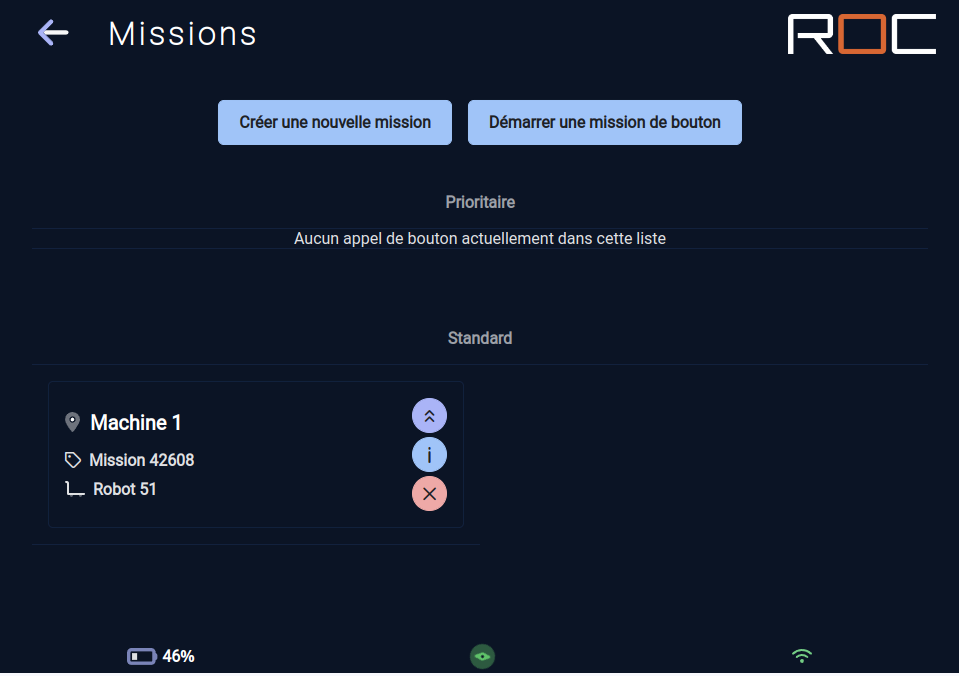
Creating a new mission
Create new mission
By clicking on the "Create new mission" button, you can create a new customized mission to send to the robots.
Step 1: choose between a multidestination mission or an ordered multidestination mission.
Step 2: choose destinations.
Step 3: choose the type(s) of module(s) authorized for this mission (if you don't select a module, they will all be authorized).
Step 4: choose one or more robots authorized for this mission (if you don't select any robot, they will all be authorized, if you select only one robot, the mission will be directly assigned to it).
Mission lists
The first list shows priority missions.
The second, non-priority missions (by default).
A non-priority mission will be given priority if the first robot is unable to carry out the mission (as soon as another robot is available, it will give priority to this mission).
Mission
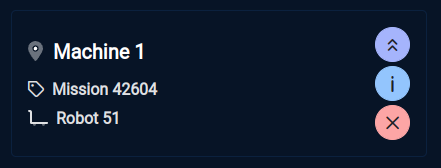
Basic information is displayed:
Active mission stage and destination.
Mission number or associated button.
The robot assigned to the mission.
3 interaction buttons are available:
Skip priority mission.
View mission details.
Cancel mission.
Mission details
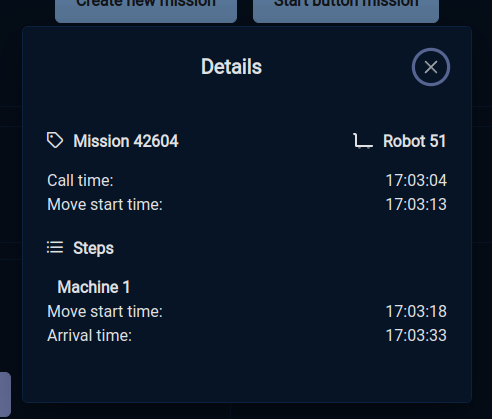
This popup allows you to view the mission details with all its steps.
Release a robot
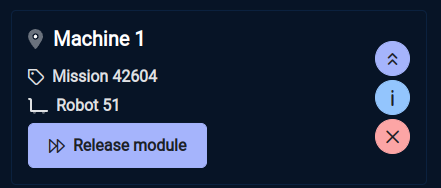
When a robot is waiting to be released, the "Release robot" button appears.
This button lets you release the robot so that it can move on to its next step, or return to charge if its mission has been completed.
Extend a mission
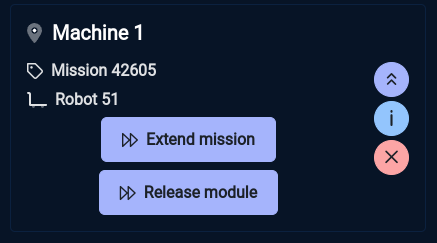
When a robot is waiting to be released and has completed its mission, the "Extend mission" button is displayed.
This button lets you specify the next steps in the robot's mission.
The robot will be automatically released when it receives these new steps.