Settings
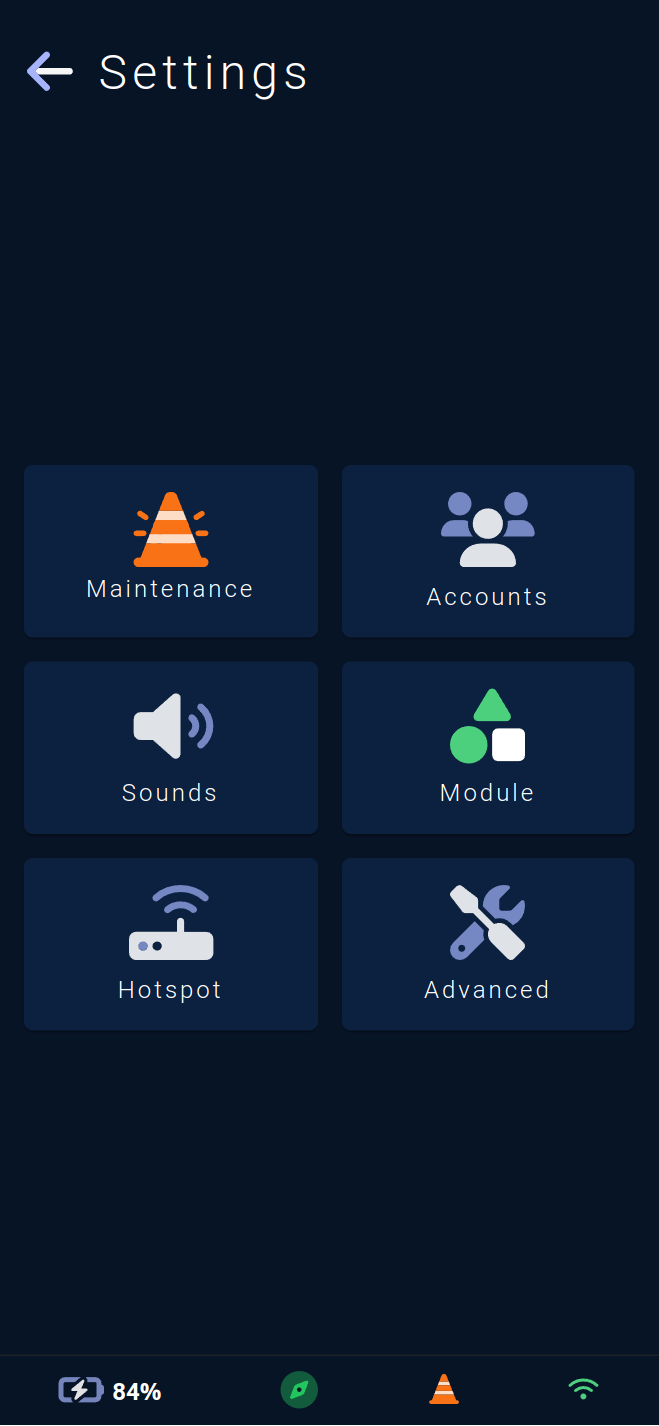
The Settings menu provides access to various configuration pages for vehicle usage.
Management of maintenance mode, which blocks movement commands from the module.
Management of user accounts 🧑🔧, for this application.
Adjustment of sound scenario volumes 🔉 for the vehicle.
Information about the active module 🧠.
Management of the
hotspot, WiFi network 🛜 emitted by the vehicle.Advanced settings 🛠️ for the vehicle.
Note : The maintenance icon will be lit in orange if maintenance mode is currently active.
The WiFi router icon will be lit in green if the vehicle is emitting its WiFi network and gray if this functionality has been disabled.
The active module icon will be lit in green if a module is detected on the vehicle.
Maintenance
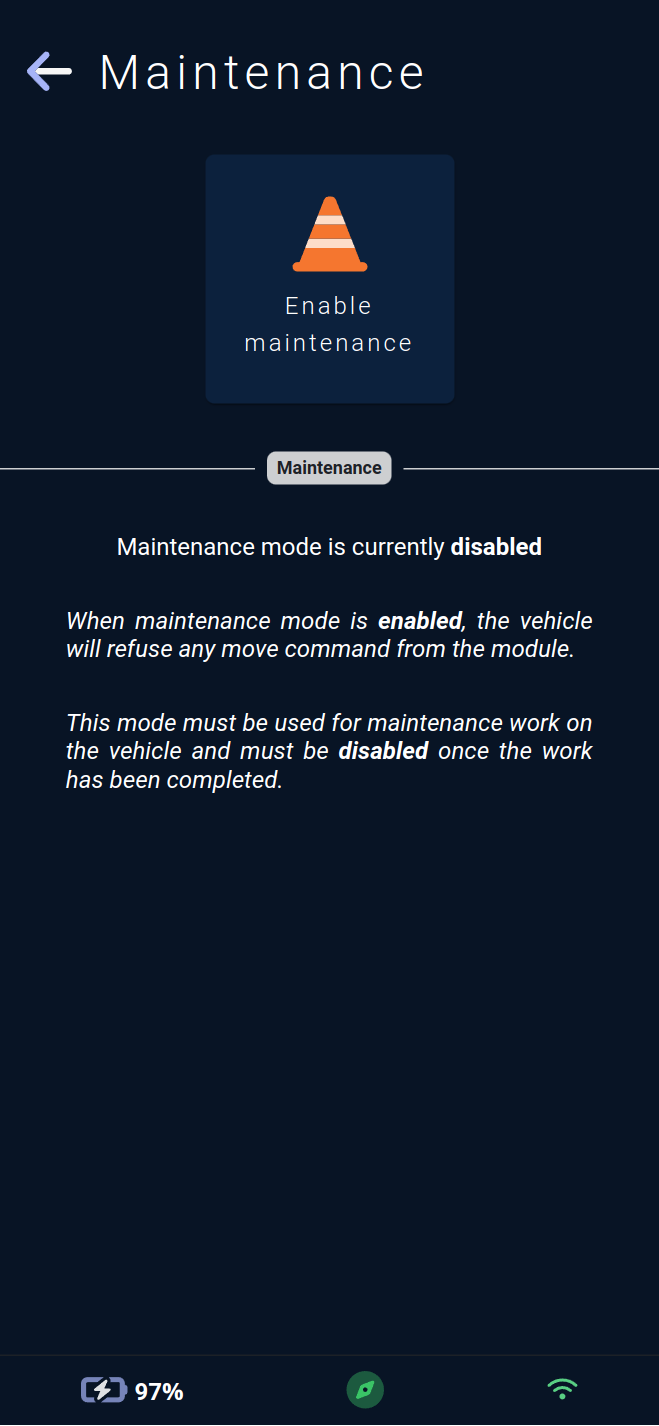
This page allows you to activate or deactivate maintenance mode on the vehicle.
Maintenance mode blocks movement commands from the module 🧠, enabling maintenance operations on the vehicle.
The display will change when maintenance mode is enabled.
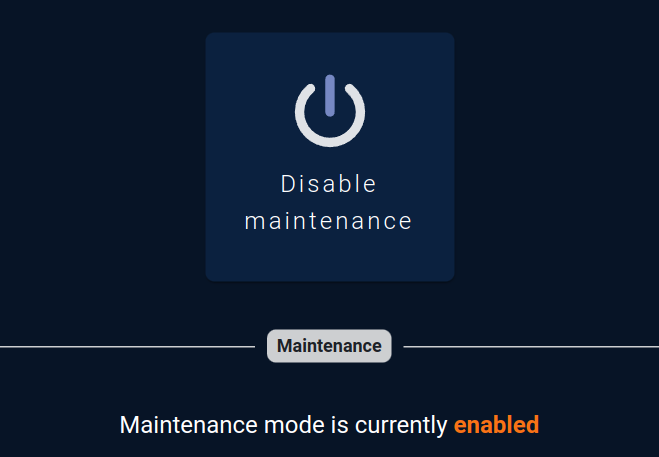
This mode is persistent across restarts. If a vehicle is powered off while in maintenance mode, it will remain in maintenance mode when powered back on, facilitating maintenance operations that require a restart.
Maintenance mode must be disabled for the vehicle to resume accepting movement commands from the module.
Once maintenance mode is disabled, the vehicle will require one final human action to return to autonomous operation.
You need to start the operating cycle via the application button or by quickly clicking the wheel release button on the vehicle.

Note : When maintenance mode is enabled, the maintenance icon in the footer provides direct access to this page.
User Accounts
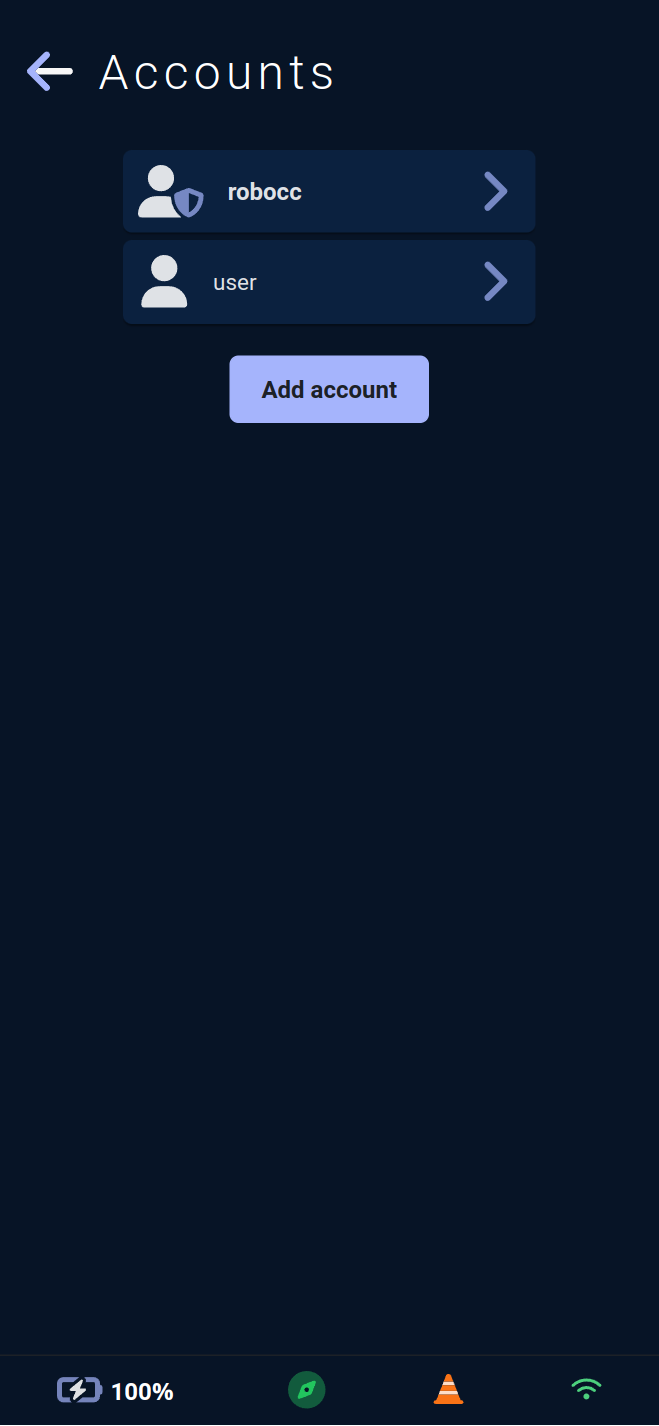
This page allows you to create and delete user accounts 🧑🔧 for the application.
It also enables modification of passwords and roles for existing accounts.
Users marked with a shield 🛡️ have an administrator 🫅 role and can create, modify, or delete other administrators.
Other users can create or modify only non-administrator users.
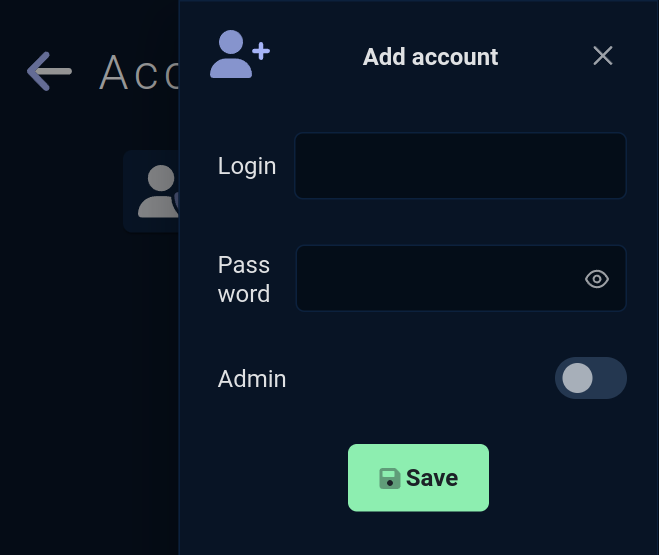
The Add account button opens a form to create a new account.
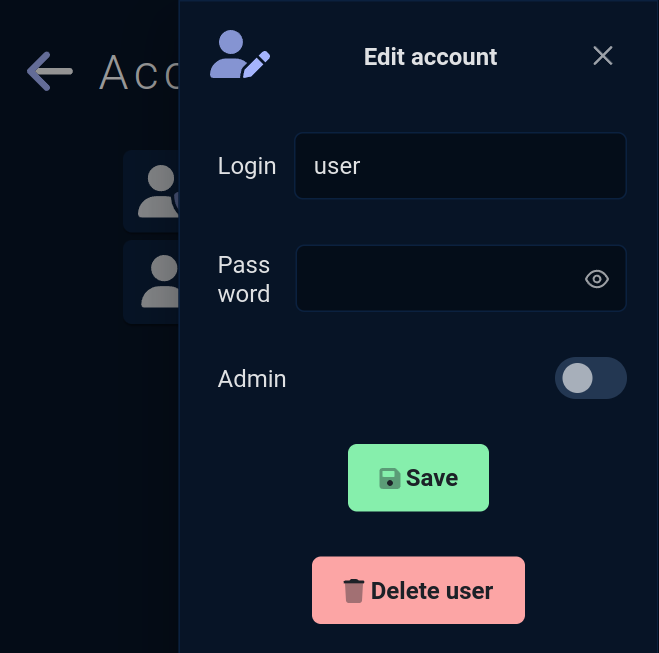
When editing a user, the form also includes the Delete user 🗑️ button to delete that user.
Sound scenario volumes
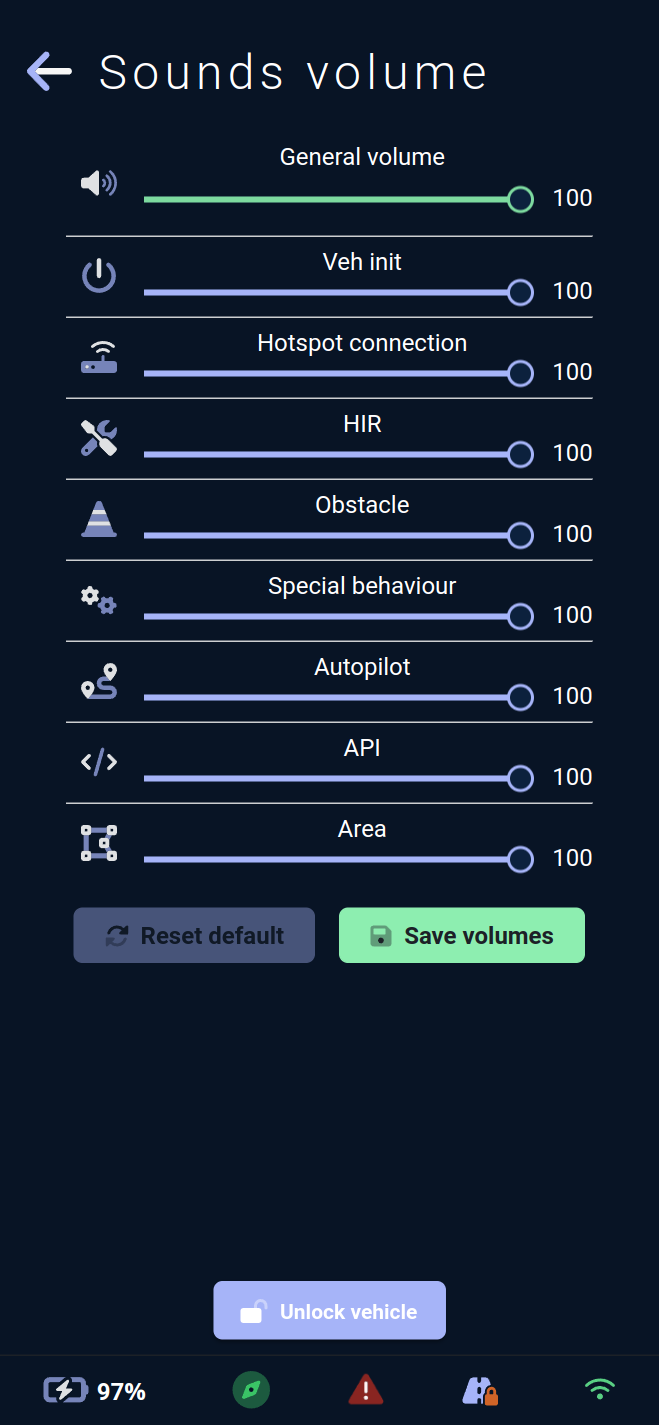
This page allows configuring a maximum volume 🔊 for each sound scenario emitted by the vehicle.
The general volume acts as an upper limit for all other values. If set to 30, other volumes cannot exceed 30.
The configurable scenarios include:
Veh init: Sounds emitted at vehicle startup.Hotspot connection: Sounds emitted when a device connects to the vehicle's WiFi hotspot.HIR(Human Intervention Required): Sounds emitted when the vehicle is awaiting human intervention.Obstacle: Sounds emitted when the vehicle detects an obstacle during movement.Special behaviour: Sounds emitted during a specific state of the vehicle.Autopilot: Sounds emitted during the sound steps of an autopilot mode sequence of the vehicle.API: Sounds emitted through API calls, encompassing all sounds from the vehicle configuration application or from the module.Area: Sounds emitted when the vehicle enters, exits, or is within a custom area where sound behaviors have been set.
These maximum volumes should be considered as upper limits.
If the volume for the API scenario is set to 50 and an API sends a sound command with a volume of 75, the vehicle will execute it with a volume of 50.
Active module
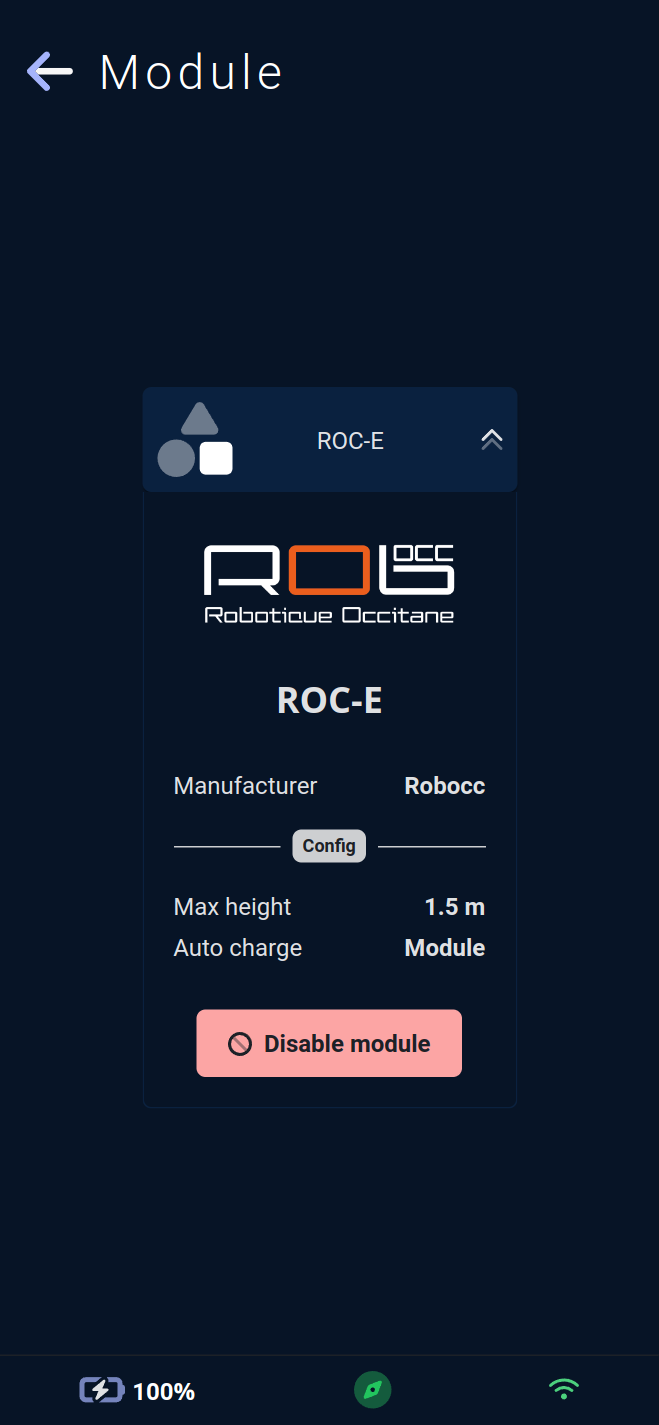
This page summarizes information about the active module 🧠 on the vehicle.
The first section of the summary displays the name, an image, and the manufacturer of the module.
Usage parameters of the module are visible in the second Config section, if specified by the module and its description file:
The maximum size 🔝 the module can reach in meters.
The maximum speed ⏱ allowed by the module in meters/second.
The maximum weight ⚖️ the module can handle in kilograms.
It is also specified whether the module or the vehicle handles automatic return to charge when the battery reaches a critical threshold.
For certain uses, the module may want to handle automatic return to charge when the battery reaches a critical threshold. The module will manage the detection of this threshold and send the vehicle to the charging station.
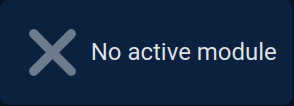
If no module is active, a cross ❌ will replace the module information display.
WiFi Hotspot Configuration
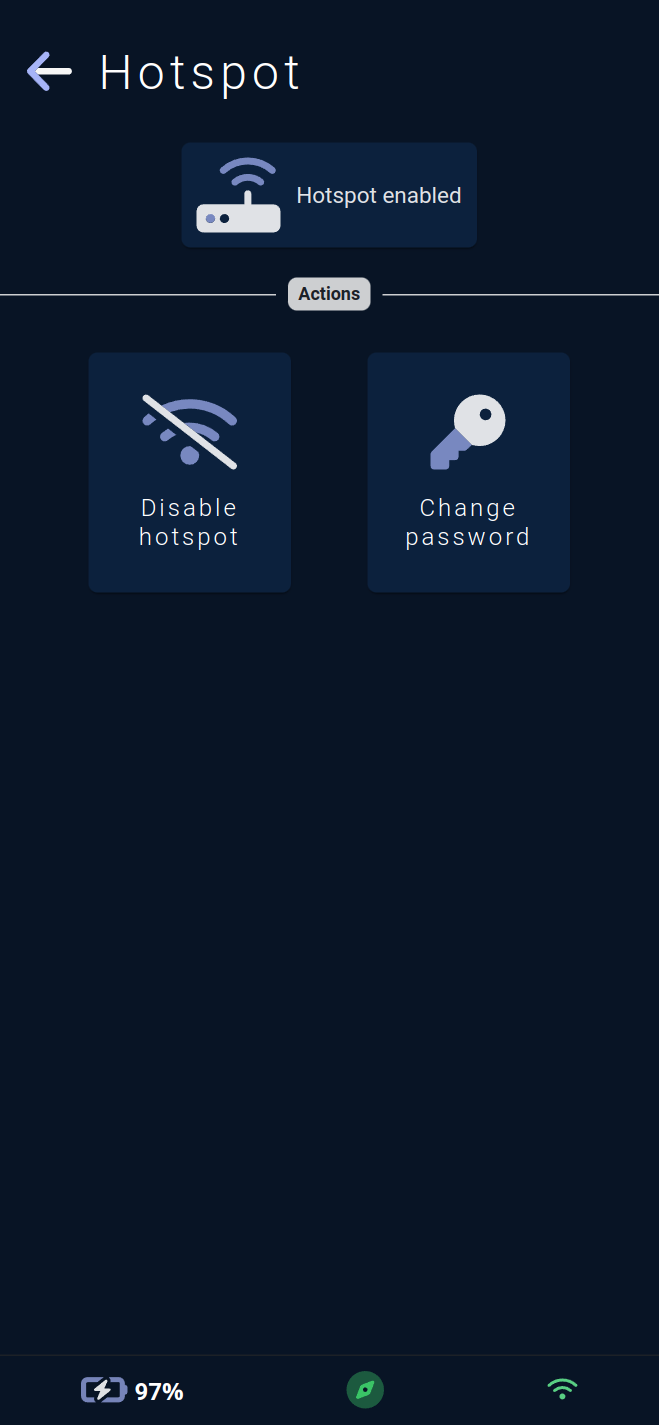
This page allows you to disable or enable the WiFi hotspot 🛜 emitted by the vehicle and modify the WiFi network password 🛜.
⚠️ Attention, only the module can re-enable the hotspot if disabled.
Please consult your IT service for internal best practices regarding password definition.